











Rollino Casino Login — Sign in Securely, Use 2FA & Restore Access
Who is this page for?
For players who want to log in to Rollino Casino quickly and securely — including 2FA tips, recovery options (email, phone, SSO) and practical troubleshooting. Ideal if you also want to enhance account security or sign out unknown devices.
Login Methods at a Glance
| Method | What you enter | Security | Notes |
|---|---|---|---|
| Email + Password | Email & password (+ 2FA) | Excellent with 2FA | Standard for most users |
| Phone + Password | Number with +country code & password (+ 2FA) | Excellent with 2FA | Fast SMS prompts possible |
| SSO (Google/Apple/Facebook) | Provider popup + 2FA | Strong with SSO 2FA | Fewer passwords; fallback password recommended |
Standard Login: Step by Step
- Click Log In.
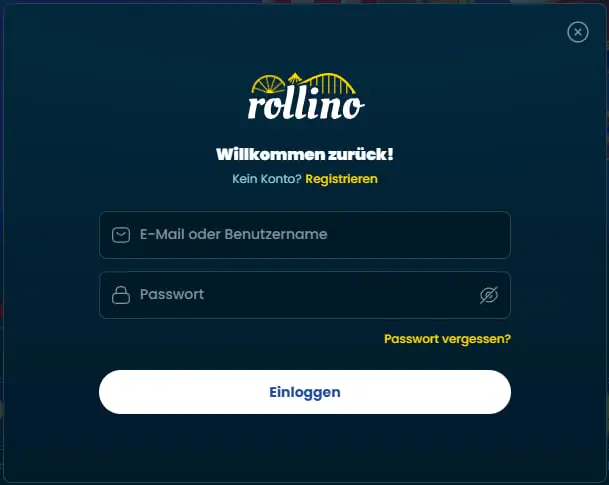
- Enter your email/phone/username and password.
- If active: enter the 2FA code from your authenticator app.
- Optional: mark device as trusted (never on shared PCs!).
Note: If you suspect a typo, show the password (eye icon) instead of sending multiple failed attempts.
Two-Factor Authentication (2FA)
2FA protects your account with an additional one-time code. We recommend an authenticator app (TOTP). SMS 2FA is possible, but depends on network quality.
- Setup: Account → Security → Two-Factor Authentication → scan QR → confirm 6-digit code.
- Backup codes: store offline (password manager/printed, kept separately).
- Device change: remove old token, scan new QR; don’t keep 2FA active on old and new devices in parallel.
Restore Access (Password/2FA/SSO)
Forgot password
- Select Forgot password.
- Enter your email or phone; request reset link or SMS.
- Set a strong new password (12–16+ chars, passphrase recommended).
No access to 2FA
- Use your backup codes (if saved).
- New device? Renew 2FA in your account using a backup code.
- No codes? Contact support; an identity check (KYC) may be required.
SSO issues (Google/Apple/Facebook)
- Check in your SSO account that 2FA is active & time is synchronized.
- If needed, log in with your fallback password and email.
- Disconnect/relink SSO under Account → Security if necessary.
Trusted Devices & Active Sessions
Under Account → Security you’ll see signed-in devices/sessions. Sign out unknown ones immediately and change your password. Mark only your private device as trusted.
- Device hygiene: keep OS & browser up to date, only necessary extensions.
- Public PCs: never use “stay signed in”; use incognito and sign out manually.
Security Best Practices
- Passwords: never reuse; use a passphrase + manager.
- Phishing protection: verify domain, use bookmarks, don’t click links from emails “blindly”.
- Network: no VPN/proxy for login/cashier/KYC; ensure Wi-Fi security.
- Notifications: enable login alerts; investigate anything unusual immediately.
Login on Mobile & PWA/App
The mobile site is fully responsive; optionally install the PWA (“Add to Home Screen”) or use an available app. Stay in the same tab during verifications or payment confirmations.
- Biometrics: Face/Touch ID for faster, secure logins.
- Push notifications: enable for security prompts & account notices.
- Browser switch: if you encounter issues, try another browser (Chrome/Safari/Firefox/Edge).
Error Messages: Meaning & Fix
| Message | Likely cause | Immediate fix |
|---|---|---|
| Incorrect credentials | Typo, Caps Lock, old password | Show password, check input; trigger reset if needed |
| 2FA code invalid | Unsynced time, expired code | Sync device time automatically, enter a new code |
| Too many attempts / rate limit | Multiple failed tries | Wait cooldown (5–15 min) and try carefully again |
| Account locked | Security/compliance lock | Contact support; have ID ready |
| Region not allowed | Geo block / VPN | Disable VPN/proxy; log in from your residence network |
| Session expired | Timeout/inactivity | Log in again; auto-logout is normal |
Quick Checklists (Login / Recovery / Security)
Login
- Open the correct domain from your bookmark.
- Correct username/email; paste password via manager.
- Have 2FA ready; mark a device as trusted only if it’s private.
Recovery
- Trigger password reset via email/SMS.
- Keep 2FA backup codes handy; otherwise ask support to reset 2FA.
- SSO glitch? Log in with fallback password and relink SSO.
Security
- Review/rotate password regularly; never recycle.
- Enable login alerts; sign out unknown sessions.
- Don’t use VPN/proxy for login/cashier/KYC.
Login FAQ
Can I log in without 2FA?
Yes, if 2FA isn’t enforced. We strongly recommend enabling 2FA for extra protection.
Why am I not receiving the SMS code?
Often format/network/rate limit: enter number with +country code, wait 60–120 s, request a new code, try another network if necessary.
I don’t recognize a login alert.
Change your password immediately, end all sessions, and enable 2FA. Inform support if you suspect misuse.
I changed my SSO (e.g., new Apple ID).
Log in with email + fallback password, then update SSO in security settings.
How long do I stay logged in?
For security, a session ends automatically after inactivity. That’s normal and protects your account.
What if my account is locked?
Contact support and have ID documents ready. Access will be restored after successful review.
Contact Support — Templates
- Lost 2FA: “Hi, I no longer have access to my 2FA app. Account: [email]. I can provide ID documents. Please reset 2FA.”
- Unknown login alert: “Hi, I received an unfamiliar login notification. Please review account [email] and terminate suspicious sessions.”
- SSO stuck: “Hi, SSO login is failing. Could you check the link to my [Google/Apple/Facebook] ID and reset it if needed?”
Sign in Securely Now
- Enter the correct credentials (email/phone + password).
- Use your 2FA code — maximum protection in seconds.
- Check the device (mark as trusted only if it’s private).
- Enable alerts and review sessions regularly.
All set — your access is secured. Good luck, and play responsibly.